
Notion Web Clipper
Highlight text on any web page and send it to a Notion page or database.

What is the best Notion web clipper?
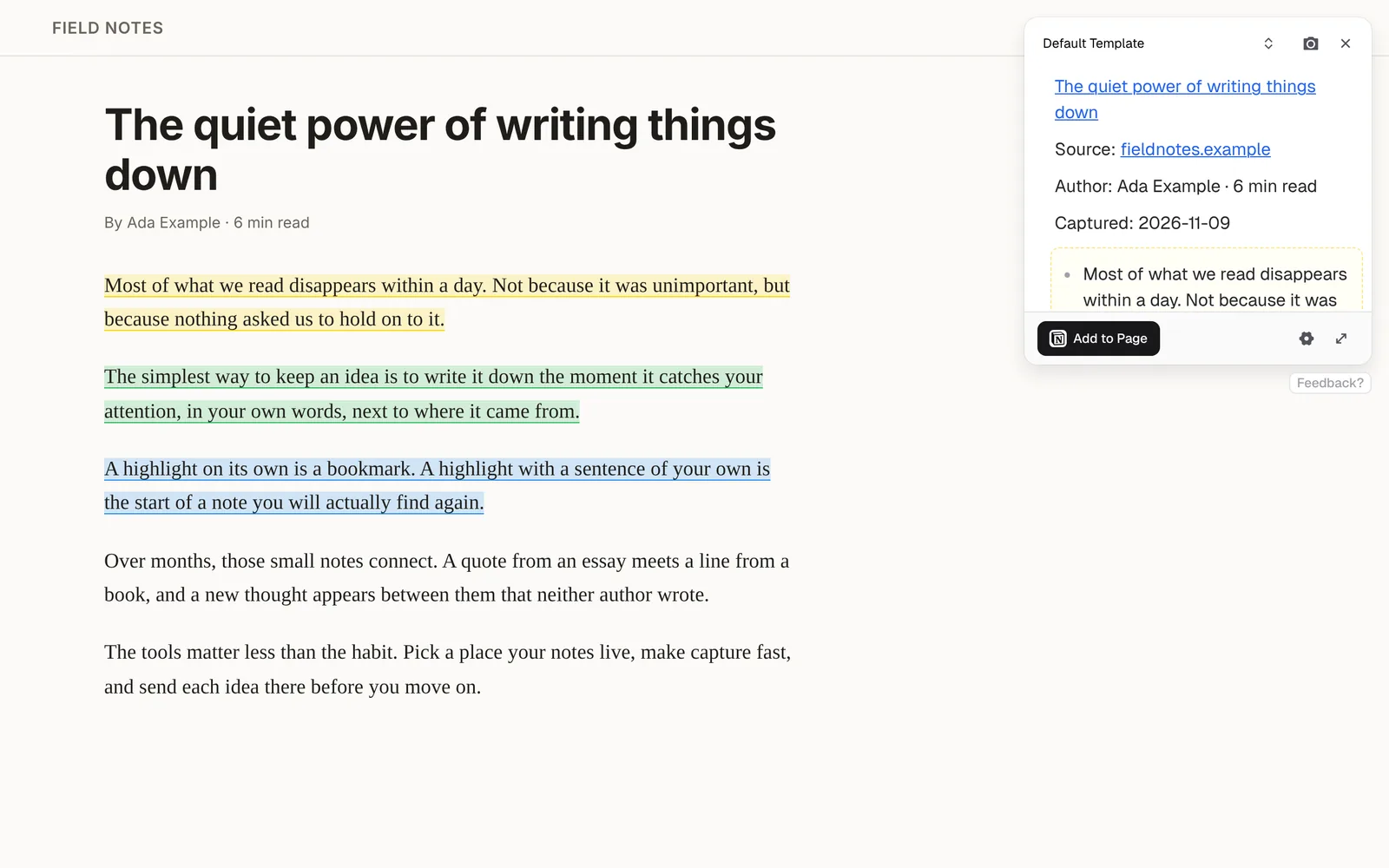
Notion Web Clipper is Notion's own clipper. Markway is a Notion web clipper for the text you highlight. You highlight in five colours, check the Markdown note beside the page, and send that note to Notion. The free plan works in Chrome, Edge, Brave, Arc, and Firefox.
How the Notion Web Clipper works
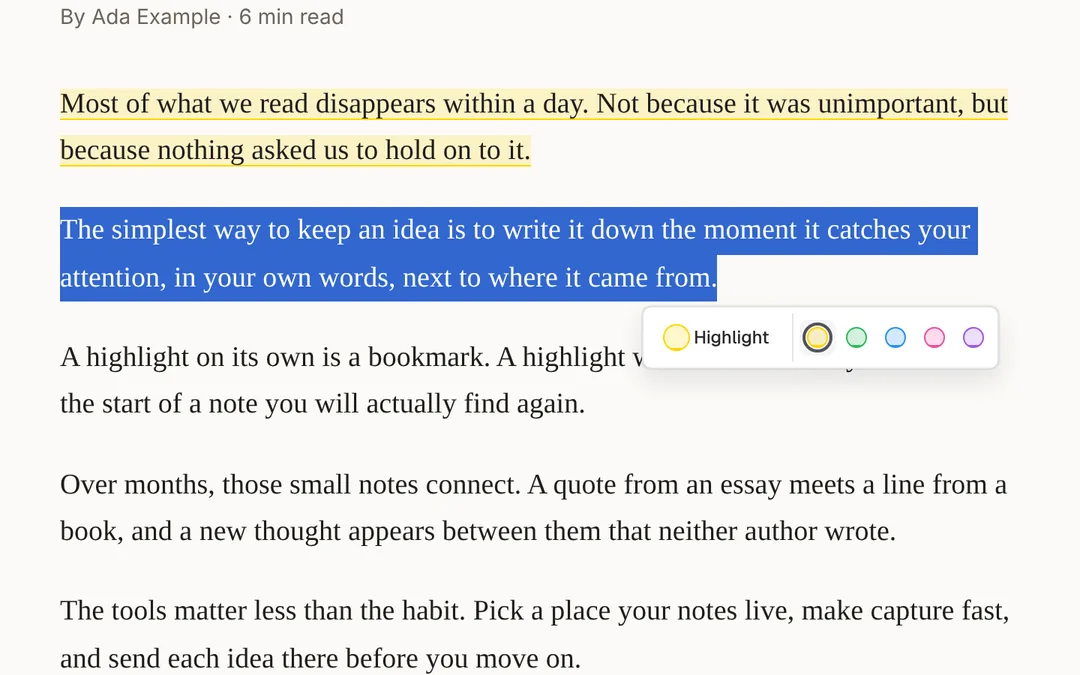
Highlight in colour
Select text on any page and highlight it in one of five colours. Your highlights stay on the page when you come back.
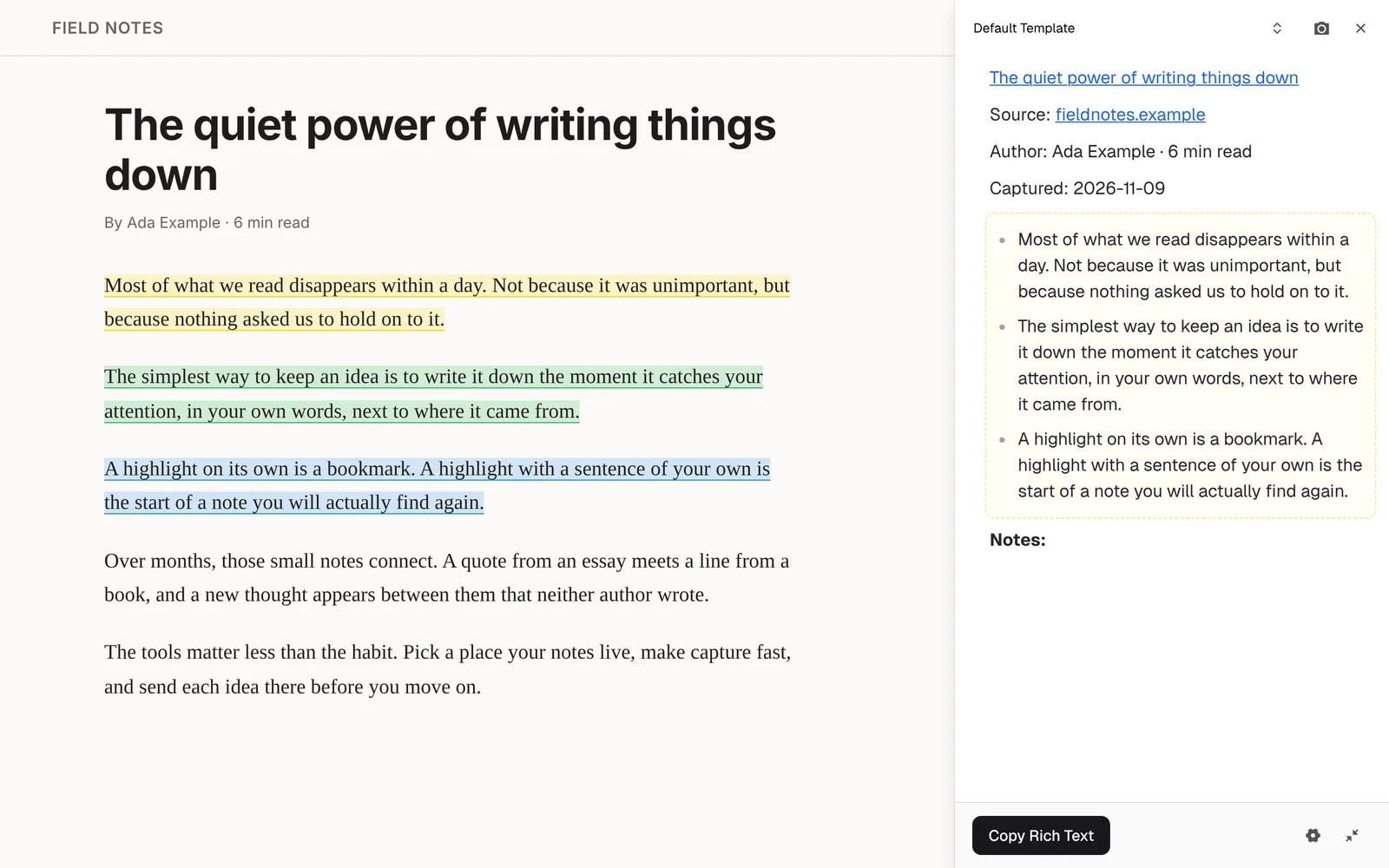
Check the note
Markway turns your highlights into a note with the title, link and date. Add a thought of your own beside the page.
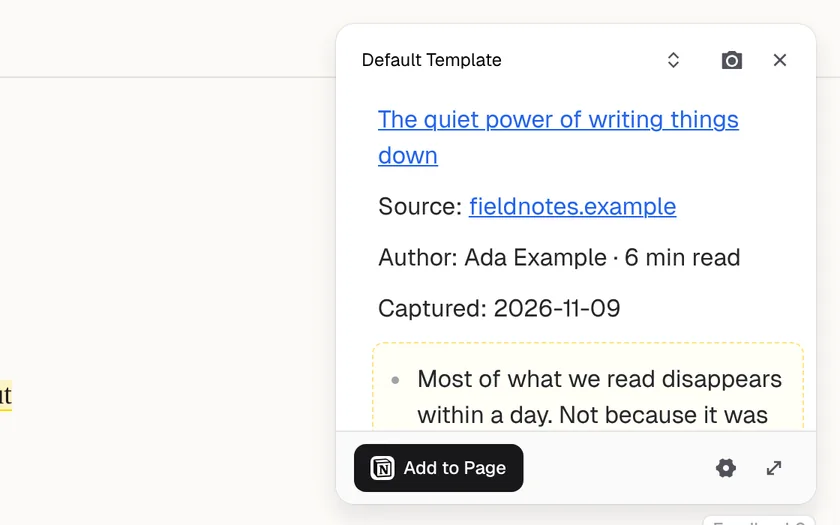
Send it to Notion
Send the note to Notion from the template.
What Markway does in Notion
Send to Notion
- Add to Page appends your highlights to the end of a Notion page you choose.
- Add to Database creates a new entry with your note in a Notion database you choose.
The same extension also sends to your other apps, copies Markdown or rich text, and downloads .md files.
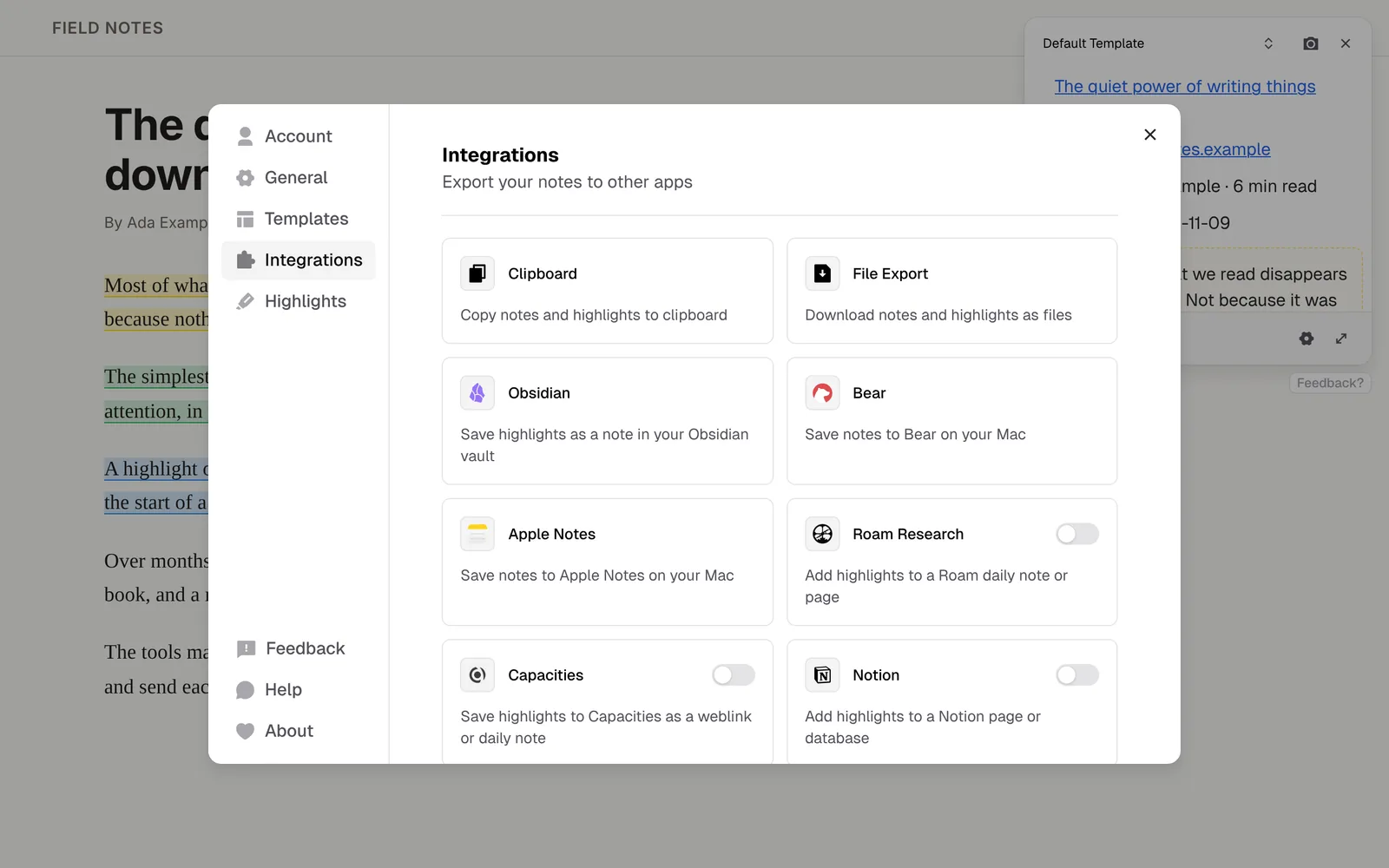
Five highlight colours
Mark quotes in one colour and ideas in another as you read. Every colour is free. Pro templates can group your highlights by colour in the note.
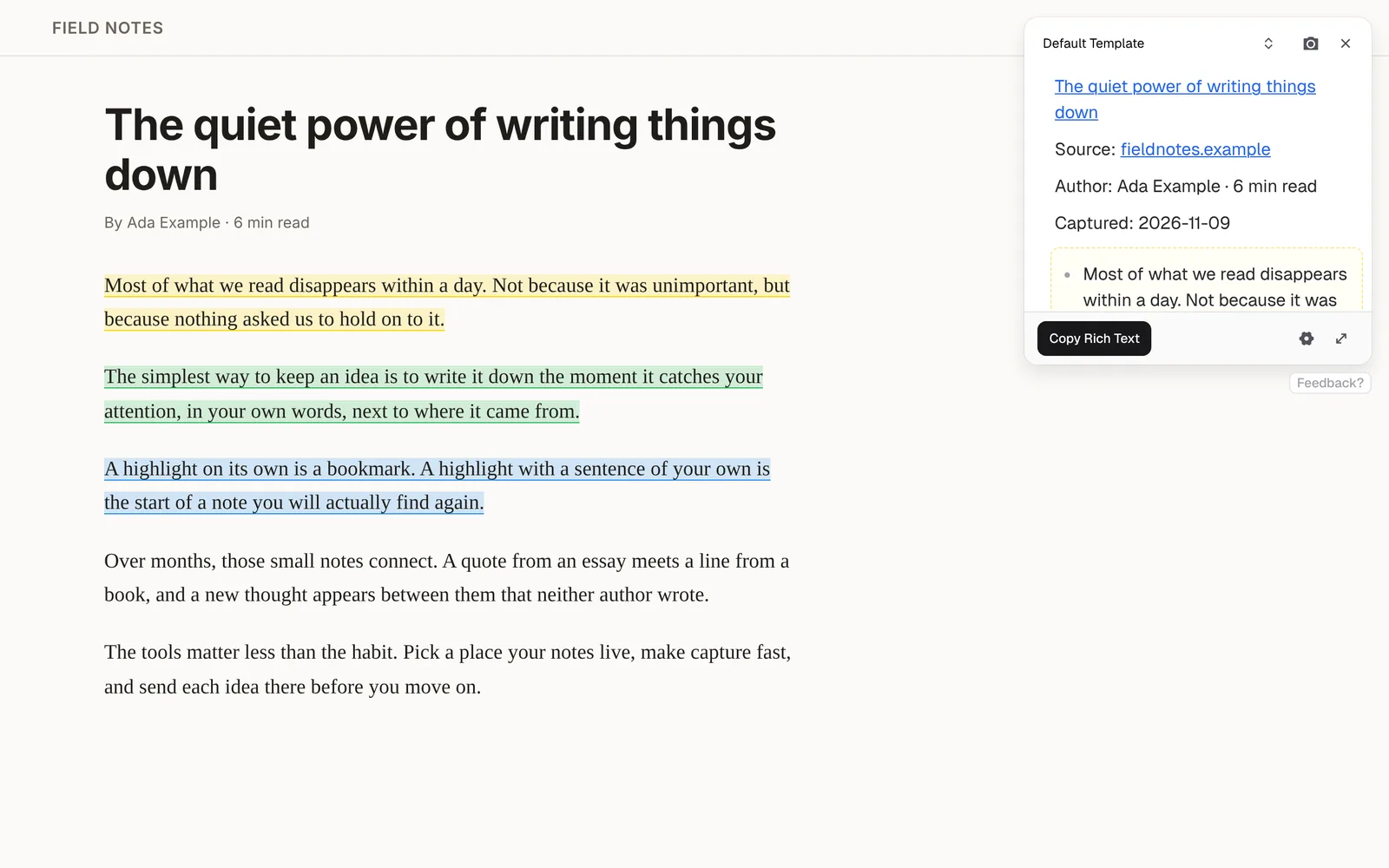
A template for each kind of reading
Keep a template for each kind of reading, such as papers, articles, or docs, and switch in the widget. Free includes 2.
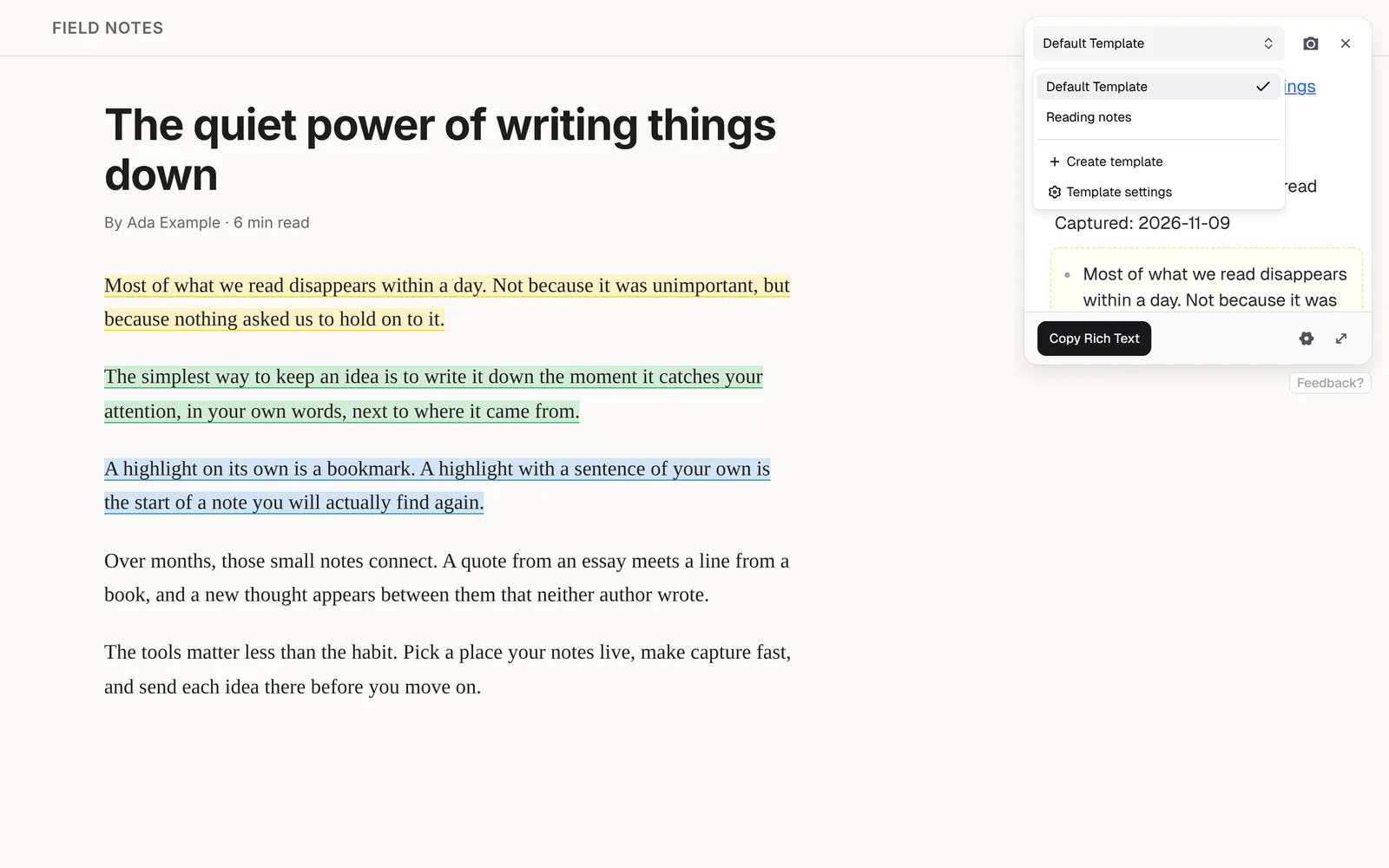
How to set up the Notion Web Clipper
In Markway, open Notion and click Connect with Notion login. If you aren't logged in, Markway opens Notion's login and checks again when you come back.
If you use more than one Notion account, pick the workspace, then pick a default page or database.
Highlight a page and send the note. A page with no highlights saves the title and link.
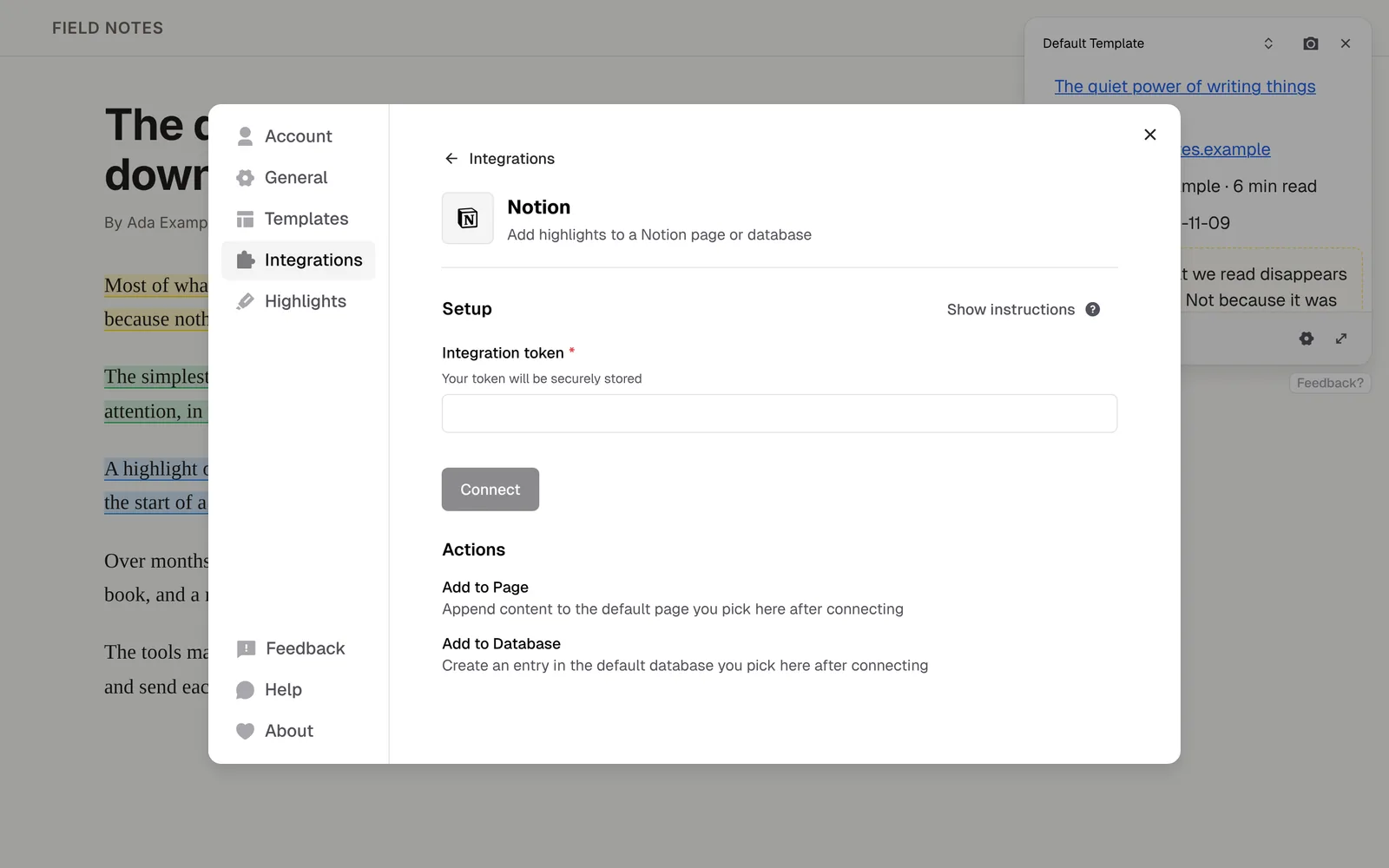
Looking for a Notion Web Clipper alternative?
Notion Web Clipper is Notion's own extension for Chrome, Safari and Firefox. It saves the page you're on to a Notion page or database you pick.
Notion Web Clipper
Pick Notion Web Clipper to save complete web pages into Notion.
Markway
Pick Markway to save only the text you highlight, with the page title and link, as a note you can edit before it reaches your Notion page or database.
Markway is an independent extension, not made by or affiliated with Notion.
Questions & answers
Markway uses the Notion account already logged in in this browser. It checks that login when you save a note, sends the note only to Notion, and does not store the login.
No. Connect with the Notion account you're already logged into in this browser.
Both. Add to Page appends the note to a page you choose. Add to Database creates a new entry in a database you choose.
Yes. Notion is available in Markway today.
Yes. Sending to Notion is part of Markway's free plan. Pro adds unlimited templates, AI prompts and PDF highlighting.
More web clipper integrations
Highlight any web page and save the text as a Markdown note in your Obsidian vault.
Highlight any web page and add the text to your Roam daily note or any page.
Highlight any web page and append the text to your Logseq journal or a page.
Save the page you're reading to Readwise Reader, together with your highlights and notes.
Highlight any web page and add the text to your Tana inbox or any node.
Highlight any web page and add it to Reflect: the page link on today's daily note in Reflect Open, or your highlights in Reflect Classic.
Save web pages to Capacities as weblinks with your highlights, or add them to your daily note.
Highlight any web page and save the text as a new object in your Anytype space.
Highlight any web page on your Mac and save the text as a formatted note in Apple Notes.
Highlight any web page on your Mac and save the text as a Bear note, or add it to one.
Highlight any web page and save the text as bullets in Workflowy, under your Inbox, a node you choose, or today.
Sign in to Craft and save web highlights as a document or on today's daily note.
Save web highlights to RemNote with your RemNote login, or add them to today's Daily Document from the desktop app.
Highlight any web page and save the text as a note in Evernote.
Highlight any web page and save the text as a Heptabase card or in today's journal.














Send the next highlight to Notion
Install it, open any article, and press ⌥X (Alt+M on Windows and Linux).